
Cross-Platform Usage Guide
Apple iOS System (iPhone & iPad)
Orion Browser
Orion browser supports some Chrome extensions. After installing Orion, you can directly install LingKuma from the Chrome Web Store.
Microsoft Edge TestFlight
Edge internal testing now supports CRX extension sideloading. It's in the beta phase and may have issues.
Edge Installation and Usage Steps
Use a US Apple ID and click the link below to join Edge TestFlight:
Download the CRX file of the extension you want to install:
Open Edge's "Extensions" page, click the gear icon in the upper right corner.
Enable the "CRX Sideloading" feature.
Select the newly downloaded CRX file to complete the installation.
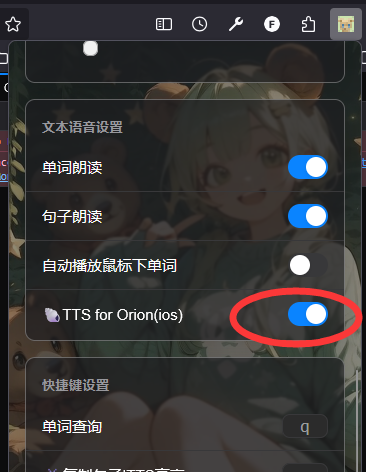
⚠️ TTS (Text-to-Speech) requires manual setup
If there is no sound in Orion, please confirm that "Orion TTS" is enabled in the extension pop-up.
Open LingKuma pop-up settings (click the icon).
Scroll down to find and toggle on "Orion TTS".
Android
Kiwi Browser
https://github.com/kiwibrowser/src.next/releases
Direct link, click to download Kiwi apk
Or please choose the one with arm64 to download and install.
Edge Browser
Others
Firefox
| Minimum Firefox version required: 140
Incompatible Features:
Liquid Glass
Please manually switch the liquid theme to the normal theme.

Sidebar
Not supported, incompatible.